How to remove text from an image: three backgrounds tested
Short answer: open the image in an inpainting tool, paint over the text with a brush a little wider than the letters, and let the tool fill the area from its surroundings. In Eraslino that is three clicks and runs in your browser without uploading the image.
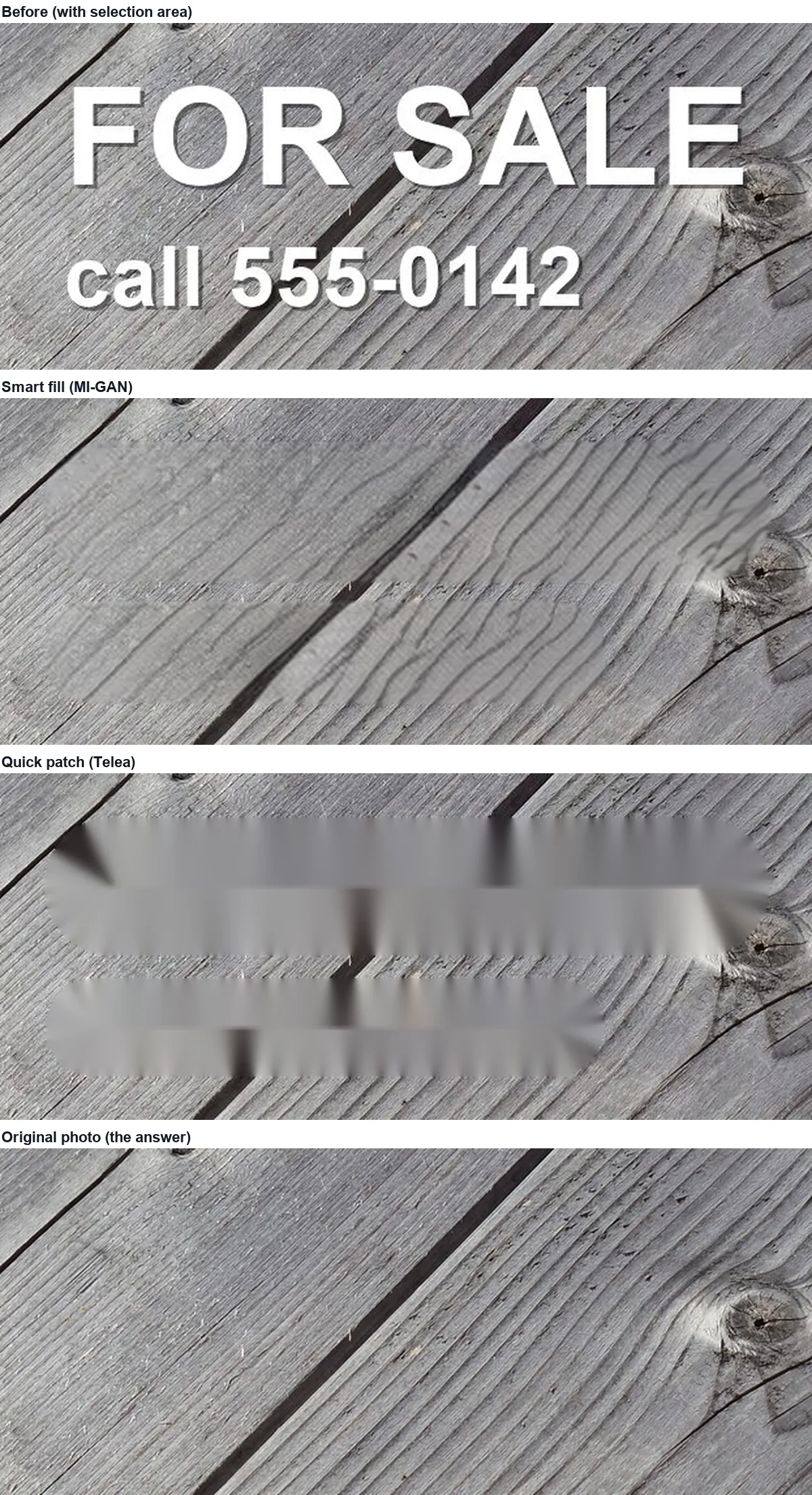
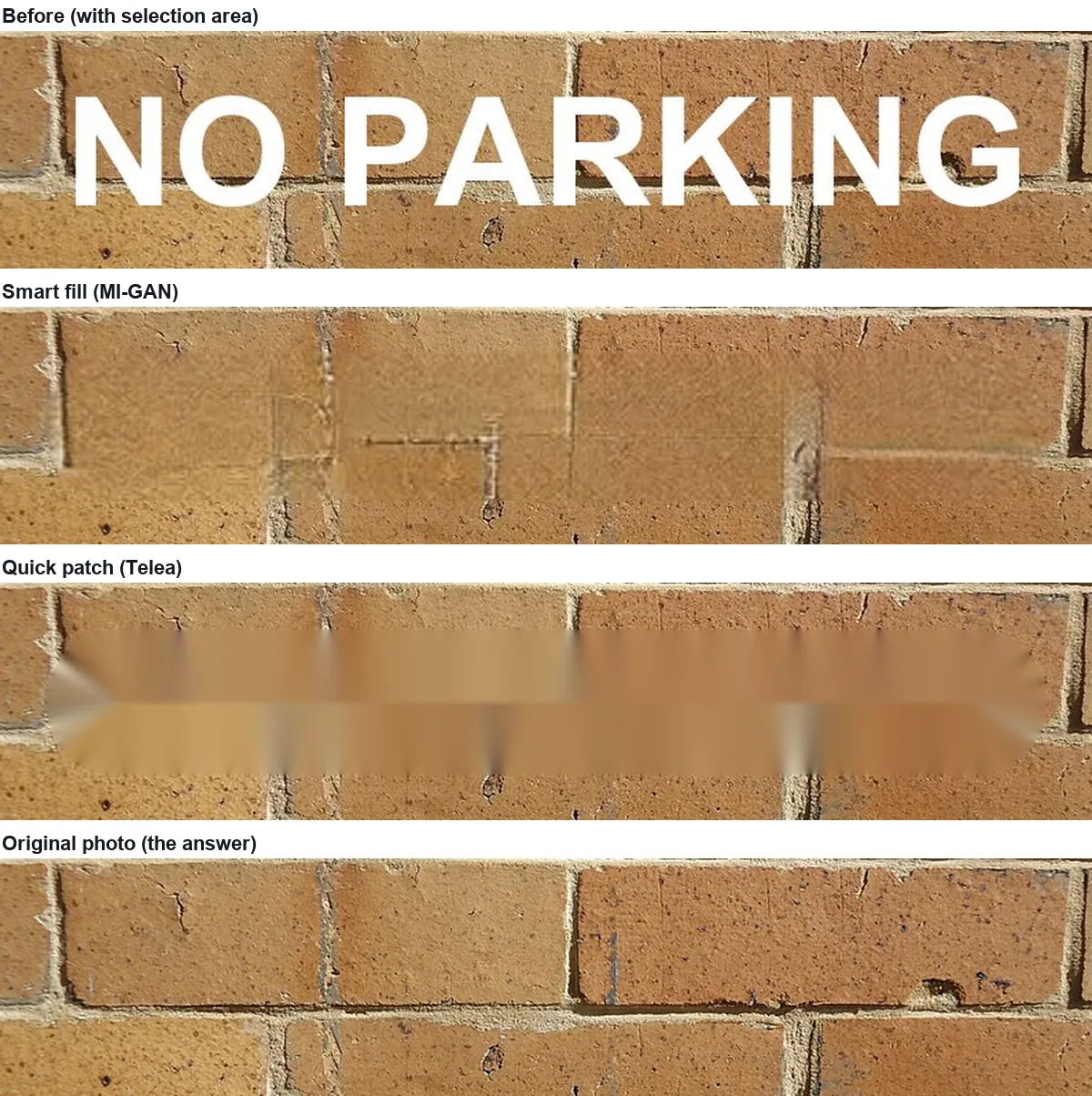
Which fill method to pick depends on what is behind the text. In our test on three backgrounds, Quick patch was closest to the original on smooth sky, while Smart fill was the only one that kept the grain of wood and the pattern of brick.
To measure this rather than eyeball it, we put captions on three public-domain photos ourselves, so the untouched photo is the answer key. Each example below opens in the eraser with the same selection, so you can repeat it.
Step by step
- Open the image. Drop a PNG, JPEG, WebP or iPhone HEIC file onto the page, paste it, or click Choose photo. The file is read by your browser; nothing is sent to a server.
- Paint over the text. Set the brush a little taller than the letters and drag along each line. Cover the whole letter, including anti-aliased edges and any drop shadow. One stroke per line of text is enough.
- Pick a fill method and erase. Smart fill (MI-GAN) generates texture; Quick patch (Telea) pulls the surrounding colours in. Hold Hold to compare to flick between the result and the original.
- Fix leftovers and download. Paint over any trace and erase again on the result, then download a PNG or JPG at the original size.

Test 1: text on a smooth sky
A white two-line caption over sunset clouds (selection: 99,609 pixels, 9.2% of the 1280 × 850 photo).
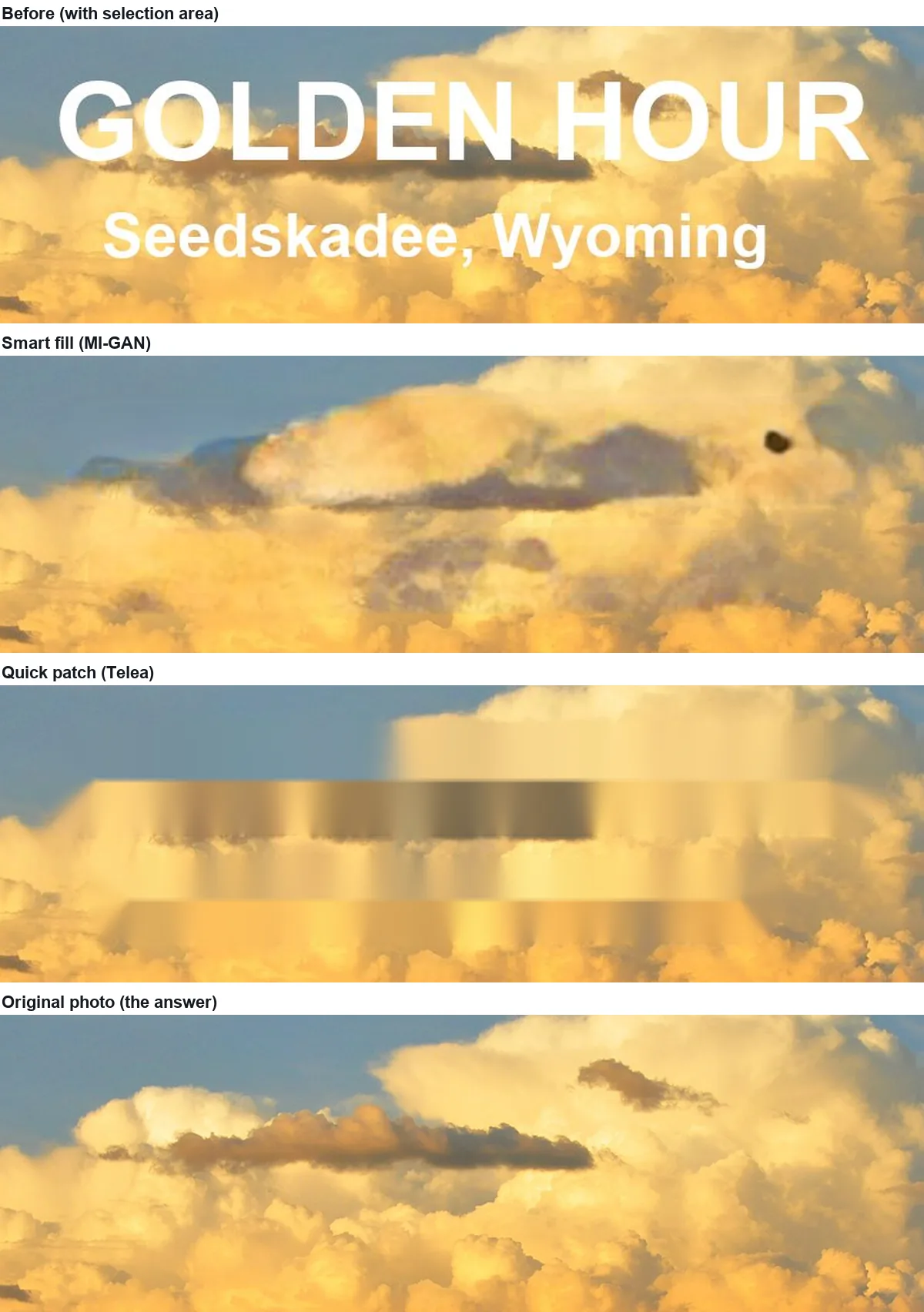
On a gradient sky, quick patch had the lowest error of all our tests (16.5). Smart fill's invented cloud shapes were further from the real clouds (26.4) than leaving the text in (24.6): plausible is not the same as correct.
Test 2: text on weathered wood
"FOR SALE / call 555-0142" with a drop shadow, over grey planks (83,426 pixels, 7.6%).
Test 3: text on a brick wall
"NO PARKING" over a brick wall (71,595 pixels, 5.8%). Brick is the hardest of the three because the mortar lines must line up.
Results
Error is the average absolute difference from the original photo over the selected pixels (0–255 scale; lower is closer). Detail compares the fine texture inside the selection with the original (1.00 = as much fine detail; near 0 = smooth). Time is the fill itself in Chrome on an Apple M4 Pro, model already cached; the first smart fill also downloads about 39 MB.
| Background | Text left in | Smart fill | Quick patch | Detail (smart / quick) | Time (smart / quick) |
|---|---|---|---|---|---|
| Sky (gradient, clouds) | 24.6 | 26.4 | 16.5 | 0.41 / 0.56* | 0.8 s / 0.1 s |
| Weathered wood | 40.7 | 23.7 | 26.0 | 0.30 / 0.03 | 0.8 s / 0.1 s |
| Brick wall | 49.1 | 21.7 | 20.2 | 0.22 / 0.05 | 0.9 s / 0.1 s |
* On the sky, quick patch's streak edges count as "detail", so its score is not a sign of real texture there.
What the numbers say
- Smooth background: use Quick patch. It is instant, downloads nothing, and the smooth fill matches a smooth sky.
- Textured background: use Smart fill. On wood and brick the two methods had similar error, but only smart fill kept texture (detail 0.30 and 0.22 against 0.03 and 0.05). At normal viewing size a flat patch on a textured surface is what gives an edit away.
- Neither brings back the original. The best result still differs from the real photo by about 16–24 levels on average inside the selection. If the text covers something that matters, such as a face, a number or a logo, what you get is a guess.
- Select tight. Everything inside the selection is replaced, including clean background. In our date-stamp test a tighter brush changed the selection from 13,830 to 7,212 pixels.
On a phone
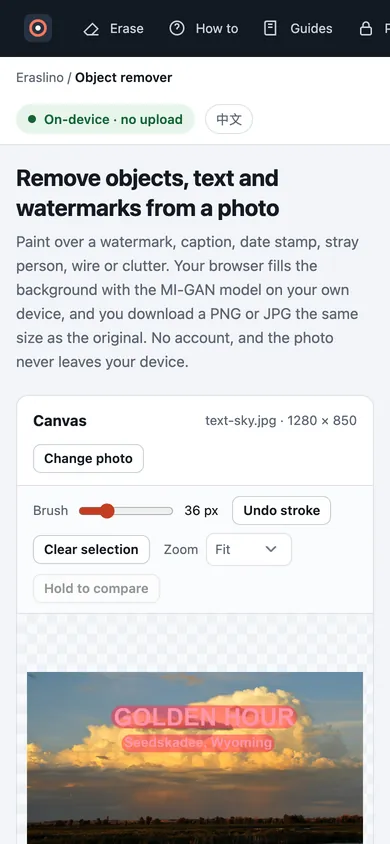
The same page works on a phone: paint with a finger, and the Erase and Download buttons move into a bar at the bottom of the screen.
Sources
- Photos: Billowy Clouds over Hawley Unit, Seedskadee NWR (public domain), Weatherworn top of wooden table (CC0), Surfaces vertical brick wall closeup view (CC0), Wikimedia Commons, read 2026-11-15. Captions added by us; 555-0142 is a fictional number.
- MI-GAN: A. Sargsyan et al., ICCV 2023, code and weights. Telea: Journal of Graphics Tools 9(1), 2004, DOI.
- Measurements: our own, 2026-11-15, Eraslino build of that day in headless Chrome on an Apple M4 Pro. How error and detail are computed: guides page.


Keep going
- How to remove a date stamp or your own watermark from a photo — One orange date stamp over water and over pebbles: when to erase and when to crop.
- How do watermark removers work? What they actually do to the pixels — Inpainting replaces, it doesn't lift: a 45% watermark erased two ways and reversed mathematically.
- All guides — every test on one page.